

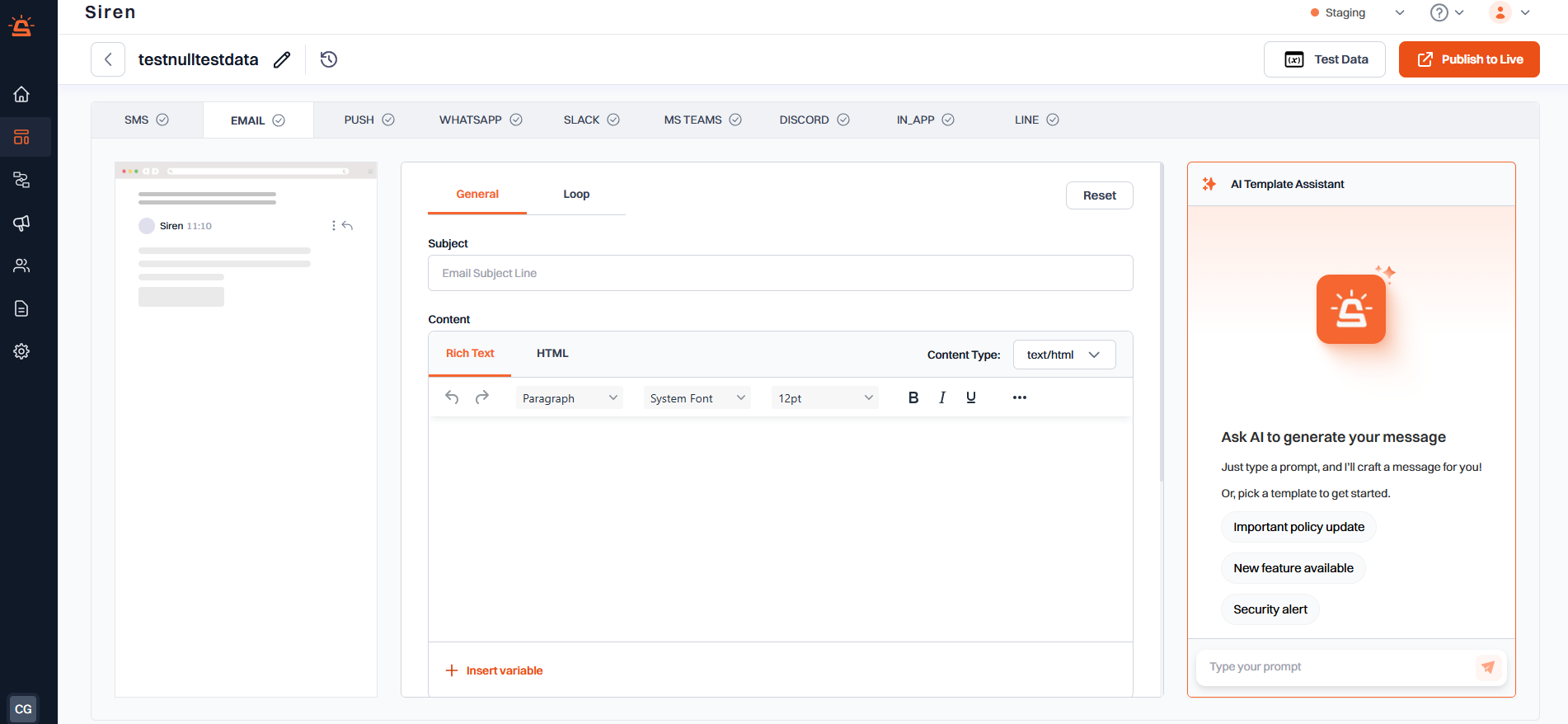
Email templates must use Handlebars syntax for proper variable handling
- Email Template
- Loop Template
1
Subject Line
Use the subject field to define the email’s subject that appears in the recipient’s inbox. It supports variable substitution for personalization.
2
Content Editor
You can write the body of the email using:
- Rich Text(default): for basic formatting like bold, italics, link, and lists.
- HTML Mode: for custom layouts, branded designs, and complete control over styling. Use the Toggle Content Mode button to switch between these two modes based on your use case.
3
Insert Variables and Images
- Use Insert Variable to include dynamic content like
{{order_id}}or{{user_name}}. - Use Insert Image/Logo to embed brand elements like headers or logos within your message.
4
Advanced Settings
You can fine-tune sender information and delivery behavior using the following optional fields: